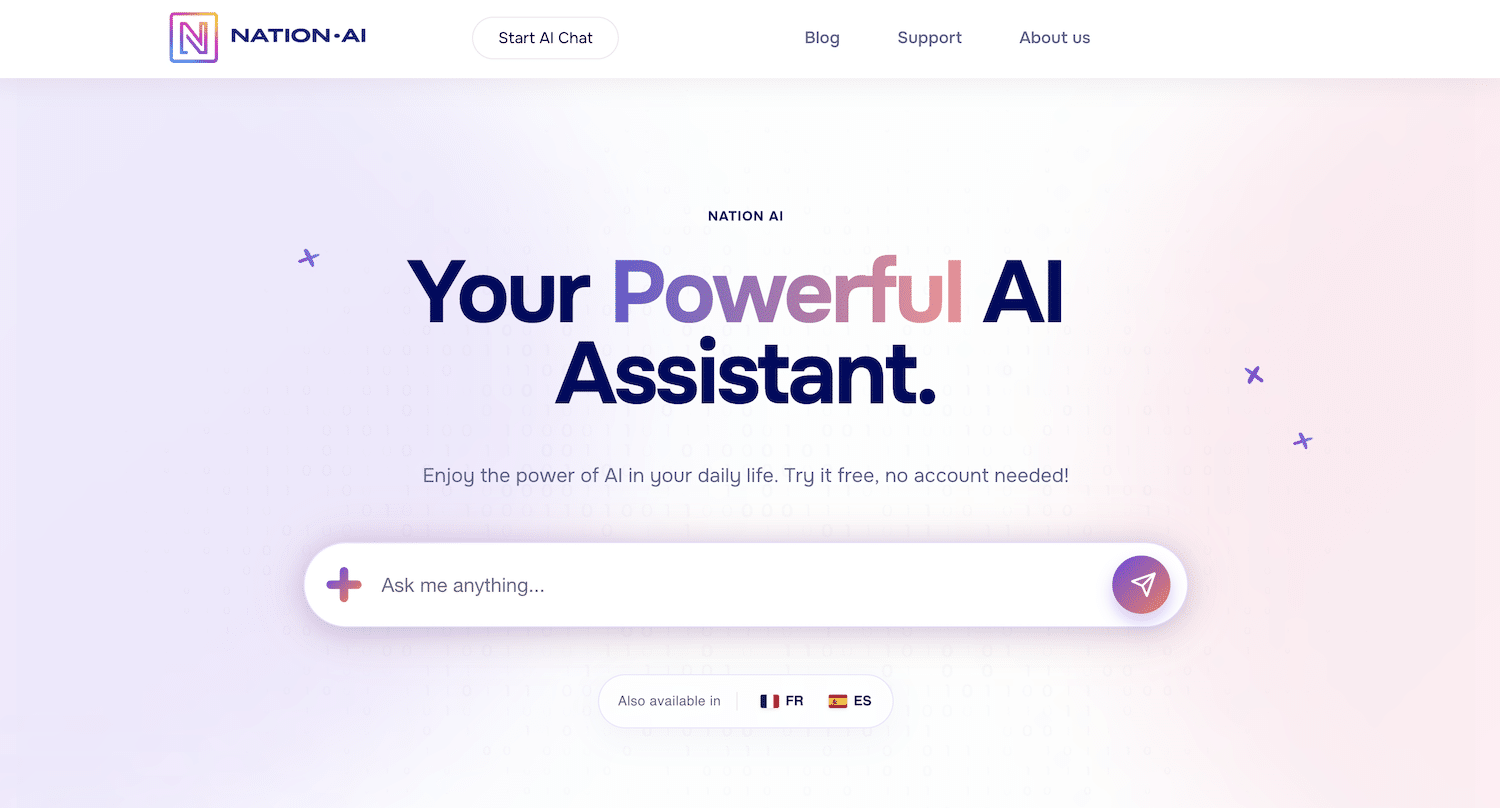
If you’re wondering why ChatGPT doesn’t work on your Mac, rest assured, you’re not alone. Many users experience access or functionality issues with ChatGPT on their Apple computer. Whether it’s on our ChatGPT that we offer for free or another language model from the GPT family, there’s always a solution to a problem!
In this article, we’ll explore the possible reasons for these malfunctions and provide practical solutions to fix them.
Why ChatGPT Doesn’t Work on My Mac: Here Are 7 Reasons and Solutions
You’re using a MacBook, Air or Pro, and ChatGPT isn’t working? We’ll show you 7 very likely reasons and also the solutions. First of all, you need to have a simple and quick reflex: Try refreshing the page! If it still doesn’t work, here are the possible reasons and solutions to apply:
1. Check Your Internet Connection
This is very basic and you can skip to step 2 if you have internet working properly on your Mac right now. But one of the most common reasons why ChatGPT doesn’t work on your Mac is an unstable or nonexistent internet connection. A weak connection can cause interruptions, making ChatGPT difficult or even impossible to use.
Make sure your Mac is properly connected to Wi-Fi by checking the connection icon. If other websites aren’t loading either, consider restarting your router or contacting your internet service provider to resolve connection issues.
2. Update Your Browser
An outdated browser can cause compatibility issues with ChatGPT. To ensure the best possible performance, check that your browser (Safari, Chrome, Firefox, etc.) is up to date.
Updates often include bug fixes and security improvements that can enhance your user experience. To check for updates, go to your browser preferences and look for the update option.
3. Clear Cache and Cookies
Temporary files can interfere with ChatGPT’s proper functioning. Accumulating too much cache and cookies can sometimes slow down your browser or cause display issues. Here’s how to clear this data:
- For Safari: Go to “Safari” > “Preferences” > “Privacy” > “Manage Website Data”. Delete the site data, then restart Safari.
- For Chrome: Go to “Chrome” > “Preferences” > “Privacy and security” > “Clear browsing data”. Choose “Cookies and other site data” and “Cached images and files”.
4. Disable Browser Extensions
Some browser extensions or add-ons can create conflicts with ChatGPT. These tools, while often useful, can sometimes interfere with web application functionality.
To see if this is the source of the problem, try temporarily disabling all your extensions. After that, test ChatGPT again. If it works, re-enable your extensions one by one to identify which one is causing the conflict.
Read also: Why ChatGPT Doesn’t Work on My Smartphone: Here Are the Solutions
5. Check Security Settings
Security software, antivirus programs, or firewall settings can block access to ChatGPT. This can happen if your security software considers the site a threat.
To resolve this issue, go to your system settings and make sure your firewall or security software allows access to ChatGPT. You can also consider temporarily disabling these tools to see if that resolves the problem.
6. Restart Your Mac
A quick restart can resolve many technical issues. If you’re still asking yourself “why ChatGPT doesn’t work on my Mac” after these 5 previous tips, try this simple solution of restarting your computer. This refreshes the system and eliminates potential minor bugs that could affect your applications.
7. Try Another Browser
If you continue to experience problems, consider trying another browser.
Sometimes, browser-specific issues can affect your ability to access ChatGPT. Download an alternative browser, like Google Chrome or Firefox, and try accessing ChatGPT from there.
8. Update Your Operating System
Finally, make sure your operating system is up to date. macOS updates can fix compatibility issues that affect applications.
Go to “System Preferences” > “Software Update” and check if any updates are available. Install them if necessary and restart your Mac.

A Bug or Outage on ChatGPT?
If you’ve examined these 7 solutions, it’s also possible that the problem simply comes from ChatGPT itself. Whether you’re using Yiaho or OpenAI, ChatGPT sometimes experiences slowdowns, updates, traffic overload, or temporary bugs. It also happens that ChatGPT cuts off its sentences for example, which is another problem we studied in this other article.
If you’re experiencing problems with ChatGPT on other devices like Android, this means your Mac is not the issue!
Although we at Yiaho do everything possible to ensure continuous operation of ChatGPT, technology isn’t perfect and can sometimes encounter internal problems. In this case, a little patience and everything should quickly return to normal!
Read on this topic: ChatGPT Bugging? Use Another One of Our AIs!
Conclusion
In short, if ChatGPT doesn’t work on your Mac, first try refreshing the page and check your internet connection, your browser update, clearing cache and cookies, and disabling extensions. Test with another browser and restart your MacBook. If the problem persists, it may be due to temporary ChatGPT bugs themselves, and a little patience should resolve the situation.
If, after following these steps, you continue to experience problems, consider contacting ChatGPT technical support or, if you’re using Yiaho, contact us by email on our contact page. By following these tips, you should be able to fix access issues and fully enjoy ChatGPT on your Mac.
When you’re wondering why ChatGPT doesn’t work on my Mac, these solutions should help you resolve most common problems. By taking the time to explore these different avenues, you’ll be able to regain a smooth and enjoyable experience with ChatGPT on your computer.